
Test your system for Physitrack Telehealth
There are currently 2 ways to access the test your telehealth calls button. We will provide a guide on how you can do this via the Connect tab and Patients profiles.
Via the Connect tab
-
Log in to your Physitrack account
Follow the steps here: Log in to Physitrack.
-
Go to the Connect Tab and select "Telehealth system test"

- Run the system test
- You’ll be taken to the Telehealth test page.
- Allow access to your camera and microphone when prompted.
-
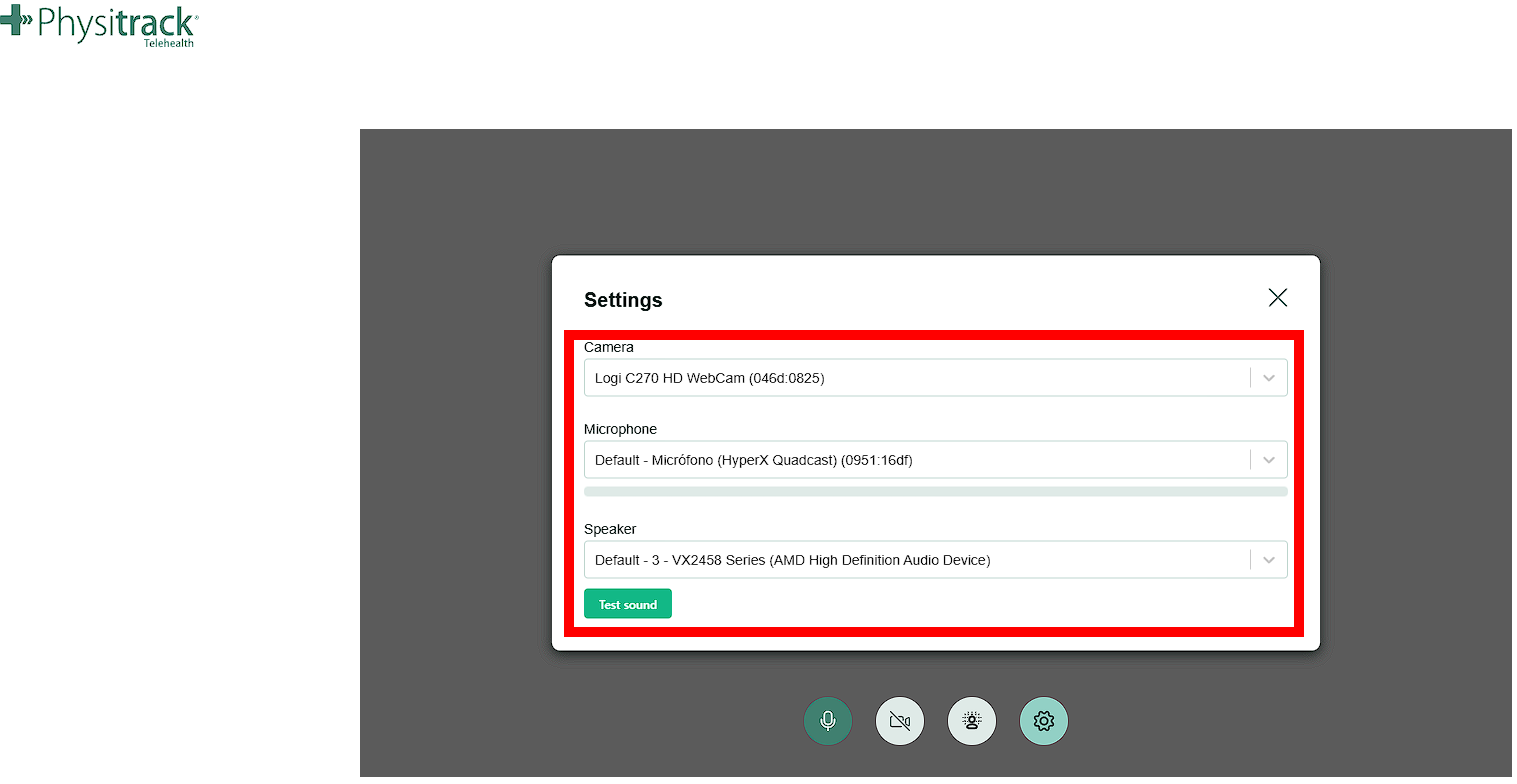
Once granted, you’ll see live checks for your camera, microphone, and speakers to confirm everything is working properly.
Via Patients profile
-
Log in to your Physitrack account
Follow the steps here: Log in to Physitrack.
Go to the Patients tab

- Select the patient you will have an appointment with. Or, for testing purposes, you can select any patient.

- Start a video call
-
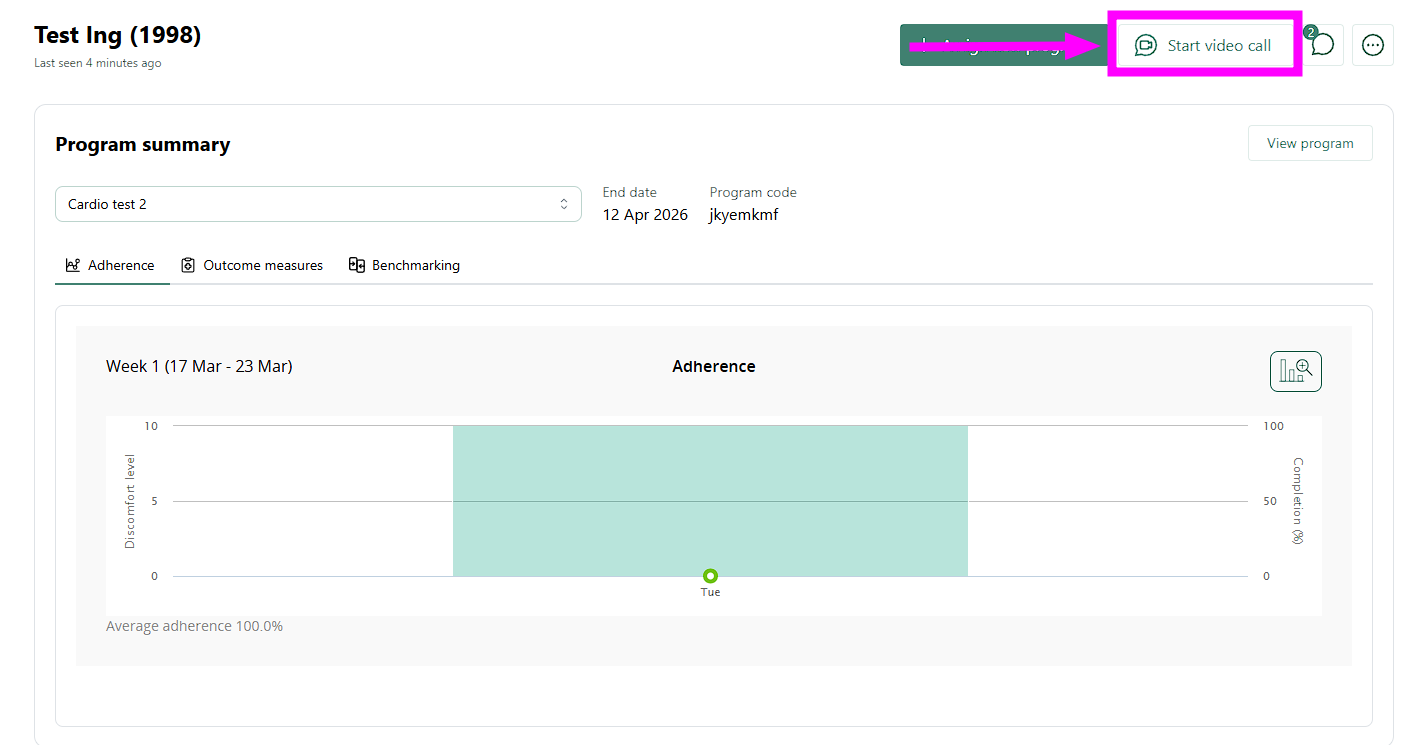
Click Start video call.
-
- Open the Telehealth system test
- A pop-up will appear asking if you want to send a Telehealth invitation to the patient.
- Instead, click Telehealth system test in the upper-right corner of this pop-up window.

- Run the system test
- You’ll be taken to the Telehealth test page.
- Allow access to your camera and microphone when prompted.
-
Once granted, you’ll see live checks for your camera, microphone, and speakers to confirm everything is working properly.
Tip: We recommend testing your system before your first Telehealth session or if you’ve recently changed devices, browsers, or audio/video equipment.