
Manage Practitioner Access
With PT Direct, you can easily manage practitioner access to your Physitrack account. This is useful if a practitioner leaves your organisation, goes on leave, or if you simply need to control who can log in.
What Does This Do?
Removing a practitioner’s access will:
- Free up a license so it can be reassigned to someone else.
-
Disable the practitioner’s access to Physitrack, but keep their account in the system.
→ You can re-enable access later if needed.
- If the practitioner had active programmes, these will be disabled unless transferred first.
How to Remove Practitioner Access
- Log in to your Physitrack account
-
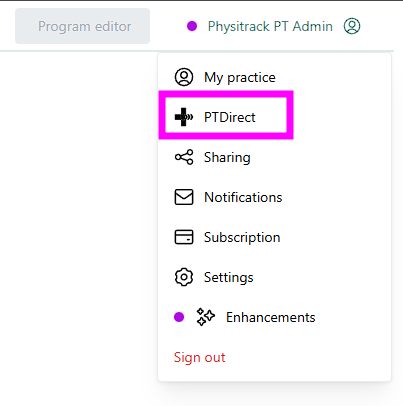
Once you have logged in, click on your profile and select PT Direct
-
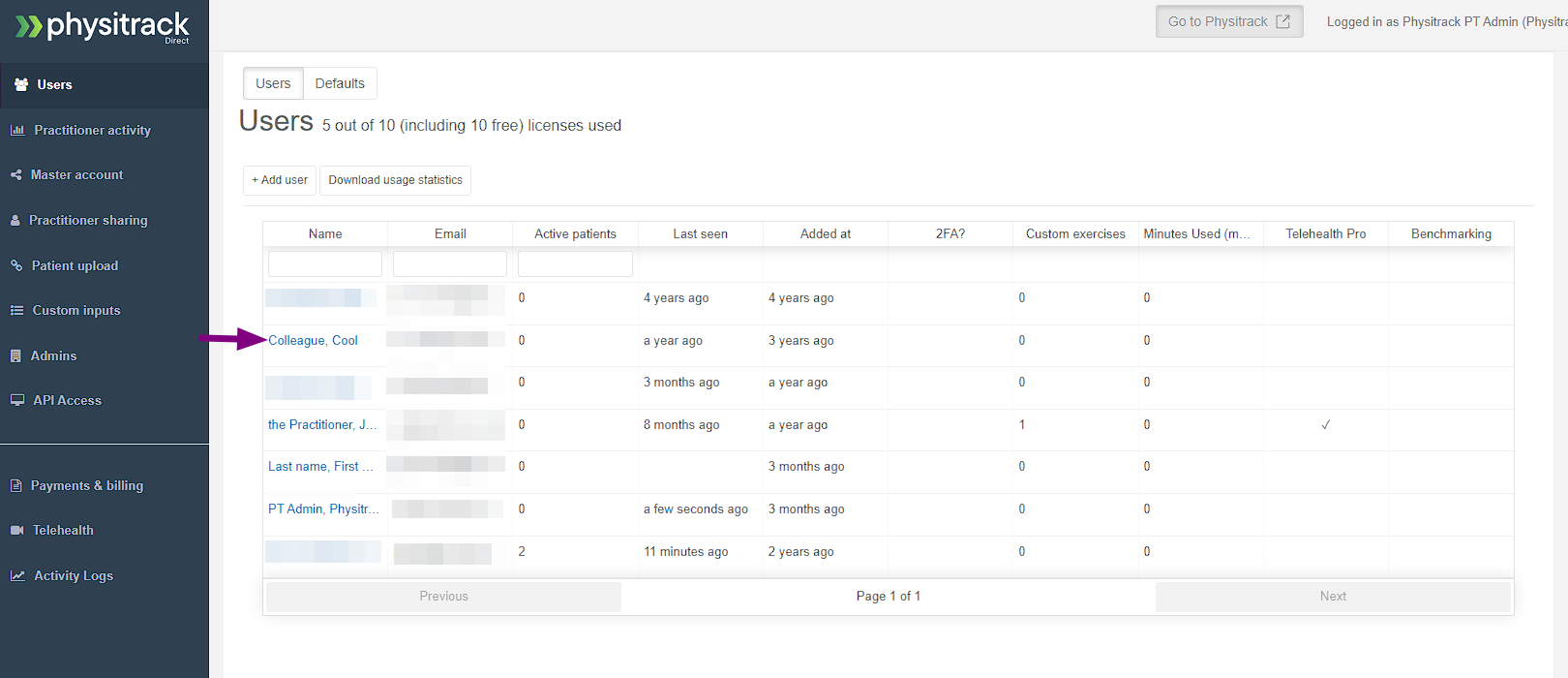
Once in PT Direct, select Users and click on the blue name of the practitioner account
- Once selected, you will see that there is an option to remove "Practitioner Access". Click on this option, and it will remove access for the practitioner, then click on save.


Important Notes
-
Active programmes:
Removing access will disable any active programmes owned by that practitioner.
If you want to keep those programmes active, you should transfer them to another practitioner first (see related article: Transferring clients between practitioners in PT Direct).
-
License count:
Once removed and saved, the license count will be automatically adjusted.
You can now assign the freed-up license to another practitioner if you wish.
-
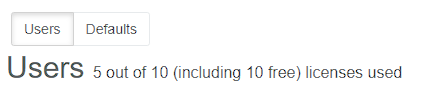
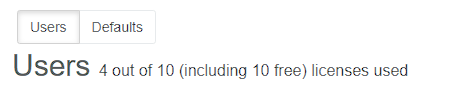
Once you have saved, you will notice your assigned licences will have been reduced, meaning you can assign them to another practitioner if you wish to do so, and the account will still remain in your PT Direct account. You can then re-enable it by following the same procedur,e but this time granting the practitioner access.
Example of before removing practitioner access:
After removing practitioner access:
What Happens From the Practitioner’s Perspective?
After their access is removed:
- The practitioner can no longer use Physitrack.
- If they try to log in, they will see a message stating that payment is required or that they no longer have access.
- They will need to contact their organisation admin to regain access.

Re-Enabling Practitioner Access
If you later decide the practitioner should have access again:
- Go back to PT Direct > Users.
- Click their name.
- Grant access by re-ticking the appropriate option.
- Save your changes, and they will be able to log in again.